In this article
Why recreate 1980s computing? The vision and the hardware When the “easy” adapter broke everything FTDI to the rescue Wiring Ubuntu for multiple terminals The TVI 910 cable puzzle Four seats, one computer Quick command cheat sheet Reflections on shared computing What I learned AcknowledgmentsWhy recreate 1980s computing?
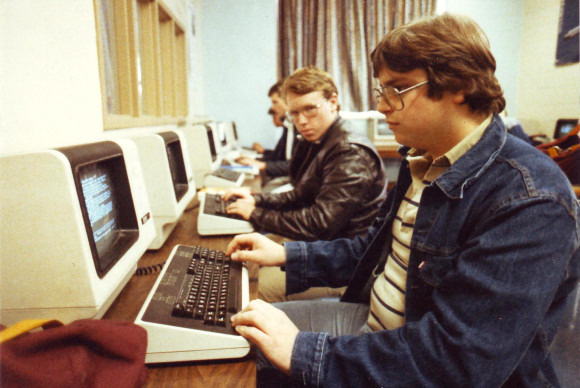
In my little museum, I have a handful of terminals that used to stare into the heart of something larger, a VAX, a System/36, something humming in a back room. They are not “computers” in the modern sense. No disk. No CPU. Just a screen, keyboard, and a long umbilical back to the real machine.
That design came with a different philosophy. Computing was scarce, so it was shared. You could look down a row of terminals and literally see who else was “on the system” with you. If the machine was struggling, everyone felt it. I wanted visitors to my museum to feel that, not in a glass case, but in a room full of blinking cursors.
The vision and the hardware
The goal was simple to describe and annoyingly specific to implement: one Ubuntu box, three or four terminals, each with its own login, all sharing the same CPU and storage.
- HP 700/96 – nice VT220 emulation, good keyboard
- HP 700/98 – similar, with its own quirks
- TVI 910 – classic Televideo personality terminal
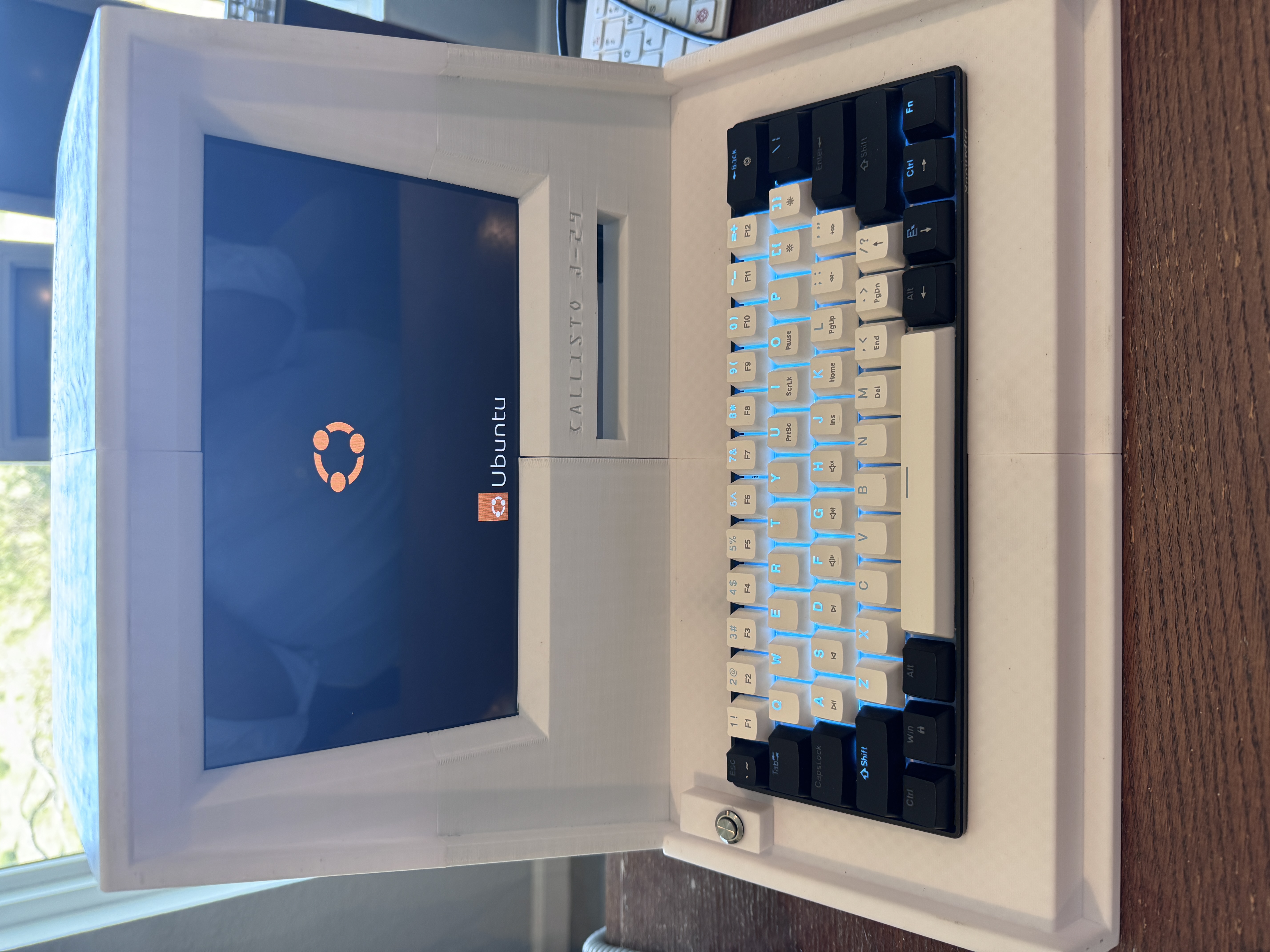
- Mac mini running Ubuntu 22.04 – the “minicomputer” of the story
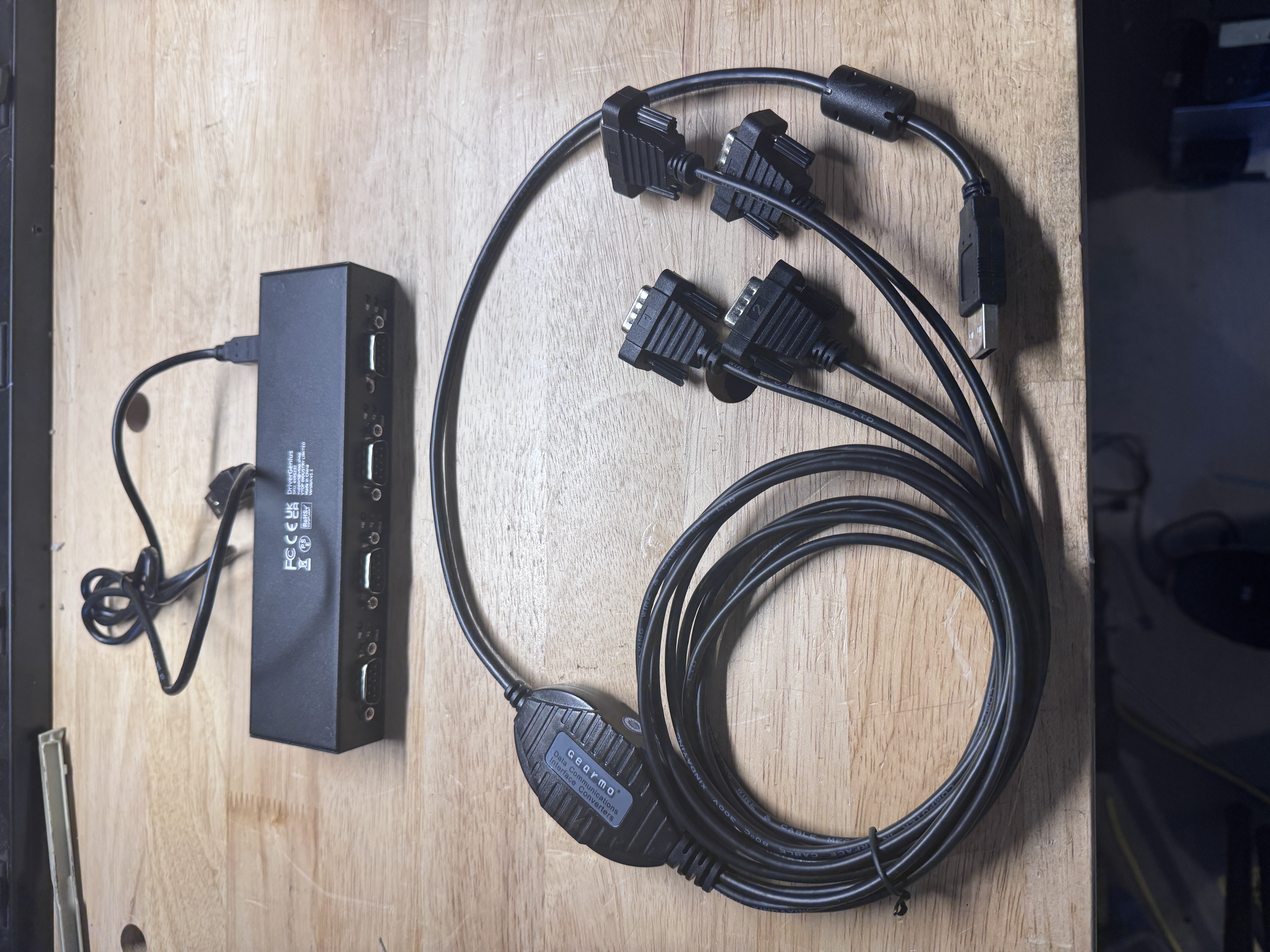
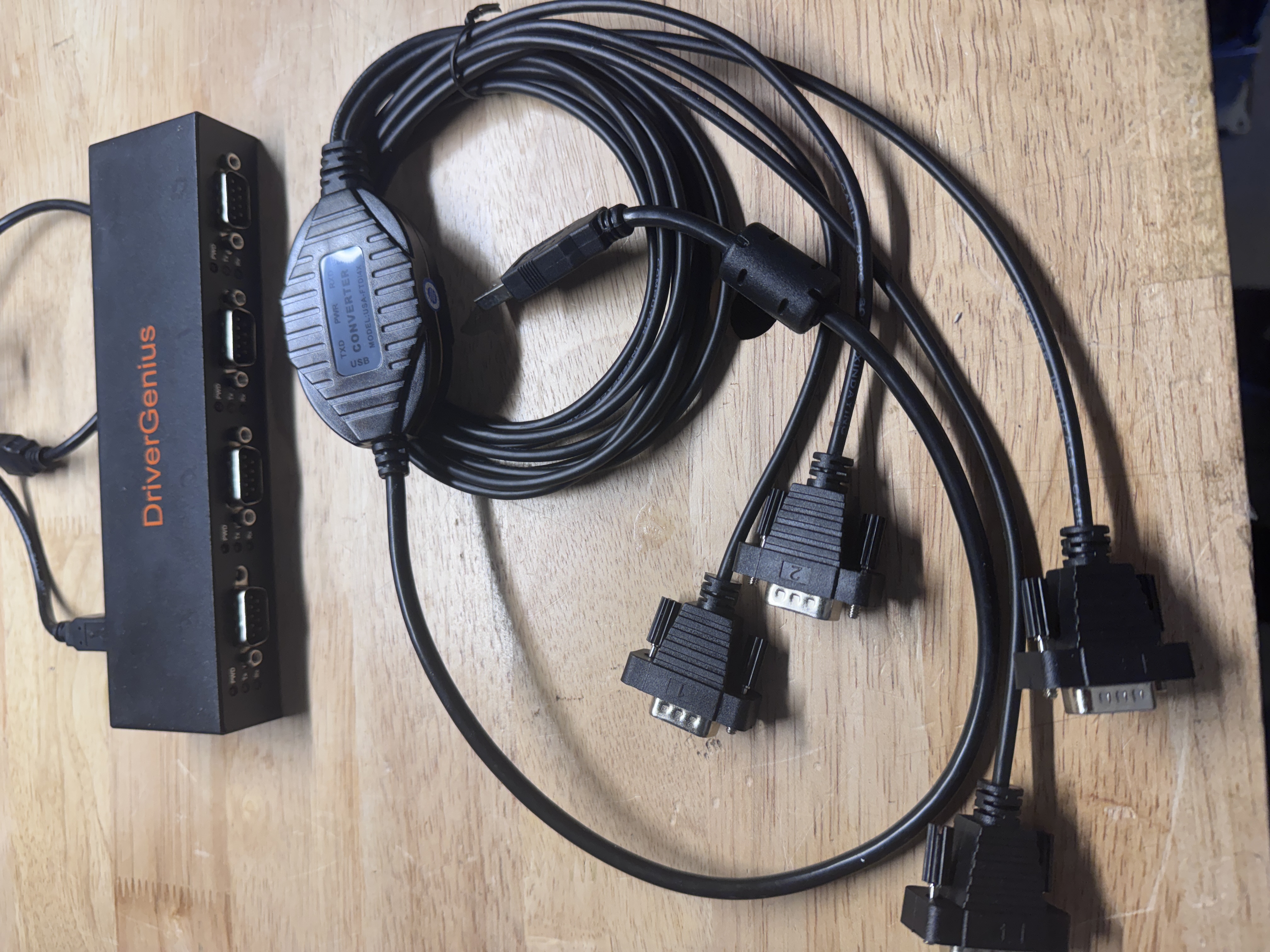
For connectivity, I started with a DriverGenius four-port USB–serial hub using Prolific PL2303 chipsets, plus a pile of null-modem cables, comnnected via USB into the MAC mini, running agetty. On paper, that should have been the beginning and end of the story.
When the “easy” adapter broke everything
Ubuntu 22.04 saw the Prolific hub immediately.
dmesg cheerfully announced ttyUSB0 through ttyUSB3,
so I turned on serial getty for one port and waited for the magic:
ls -l /dev/ttyUSB*
sudo systemctl enable serial-getty@ttyUSB0.service
sudo systemctl start serial-getty@ttyUSB0.service
The HP 700/96 stared back with a blank screen. No banner, no cursor, nothing. So I dropped to basics:
sudo stty -F /dev/ttyUSB0 9600 cs8 -parenb -cstopb -crtscts -ixon -ixoff
echo "Hello terminal" | sudo tee /dev/ttyUSB0
Still nothing. But when I reversed the direction:
sudo cat /dev/ttyUSB0
# now type on the HP keyboard…
Every keystroke from the HP appeared in my SSH session. The adapter could hear the terminal, but the terminal was deaf to the host. Classic one-way serial link.
Hours of stty experiments, loopback tests, and even a Windows machine later, the pattern became clear:
the Prolific adapter worked fine on Windows and on older Ubuntu, but not here.
The culprit turned out to be a kernel-level regression in the pl2303 driver
for the specific chip revision used in my hub.
This was nothing I was going to fix from my little terminal room.
FTDI to the rescue
At some point you stop arguing with a driver and change the hardware.
I ordered a Gearmo four-port hub with genuine FTDI FT4232H silicon,
plugged it in, and watched dmesg light up with the comforting words
ftdi_sio and ttyUSB0 through ttyUSB3.
sudo stty -F /dev/ttyUSB0 9600 cs8 -parenb -cstopb -crtscts -ixon -ixoff
echo "FTDI ADAPTER TEST" | sudo tee /dev/ttyUSB0
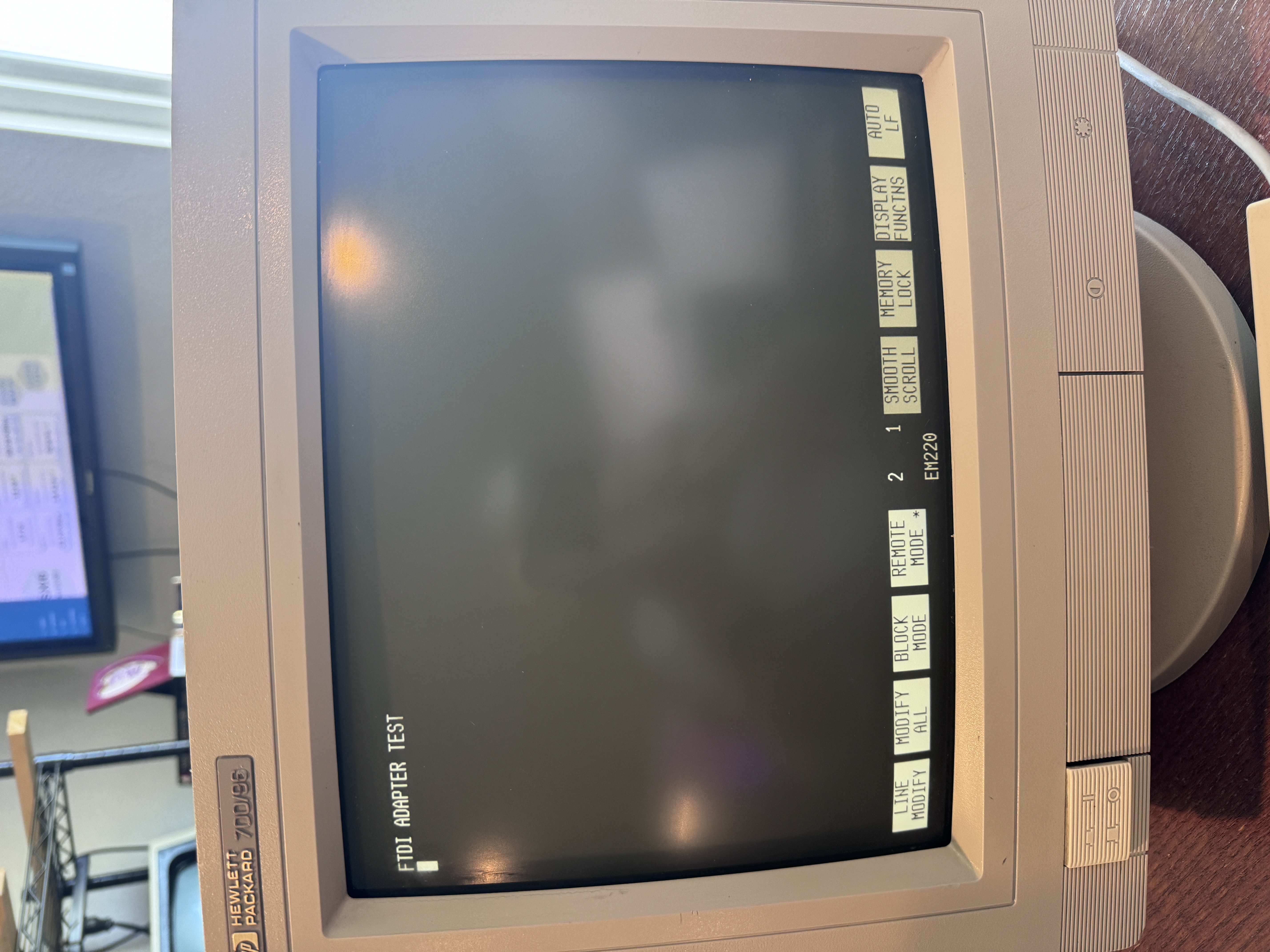
This time the HP 700/96 happily printed the test string. Two-way communication, no drama, no workarounds. I sent the Prolific hub to the “Interesting Failures” shelf, and the rest of the build could finally begin.
Wiring Ubuntu for multiple terminals
With the FTDI hub in place, enabling logins on the serial ports was almost disappointingly easy.
Ubuntu ships with a template service called serial-getty@.service that takes care of the heavy lifting.
Turning on a login prompt
# Enable and start getty on ttyUSB0
sudo systemctl enable serial-getty@ttyUSB0.service
sudo systemctl start serial-getty@ttyUSB0.service

# Check that it's alive
sudo systemctl status serial-getty@ttyUSB0.service
Within seconds, the HP 700/96 came to life:
Ubuntu 22.04 LTS TerminalServer ttyUSB0

TerminalServer login: _
To make life easier for the terminal and modern software, I dropped in a small override so the port always runs 9600 baud and assumes VT220 emulation:
sudo systemctl edit serial-getty@ttyUSB0.serviceThen in the editor I added:
[Service]
ExecStart=
ExecStart=-/sbin/agetty -L 9600 %I vt220
After a quick daemon-reload and restart (a reboot would work too),
logging in and running echo $TERM showed exactly what I wanted:
jerry@TerminalServer:~$ echo $TERM
vt220
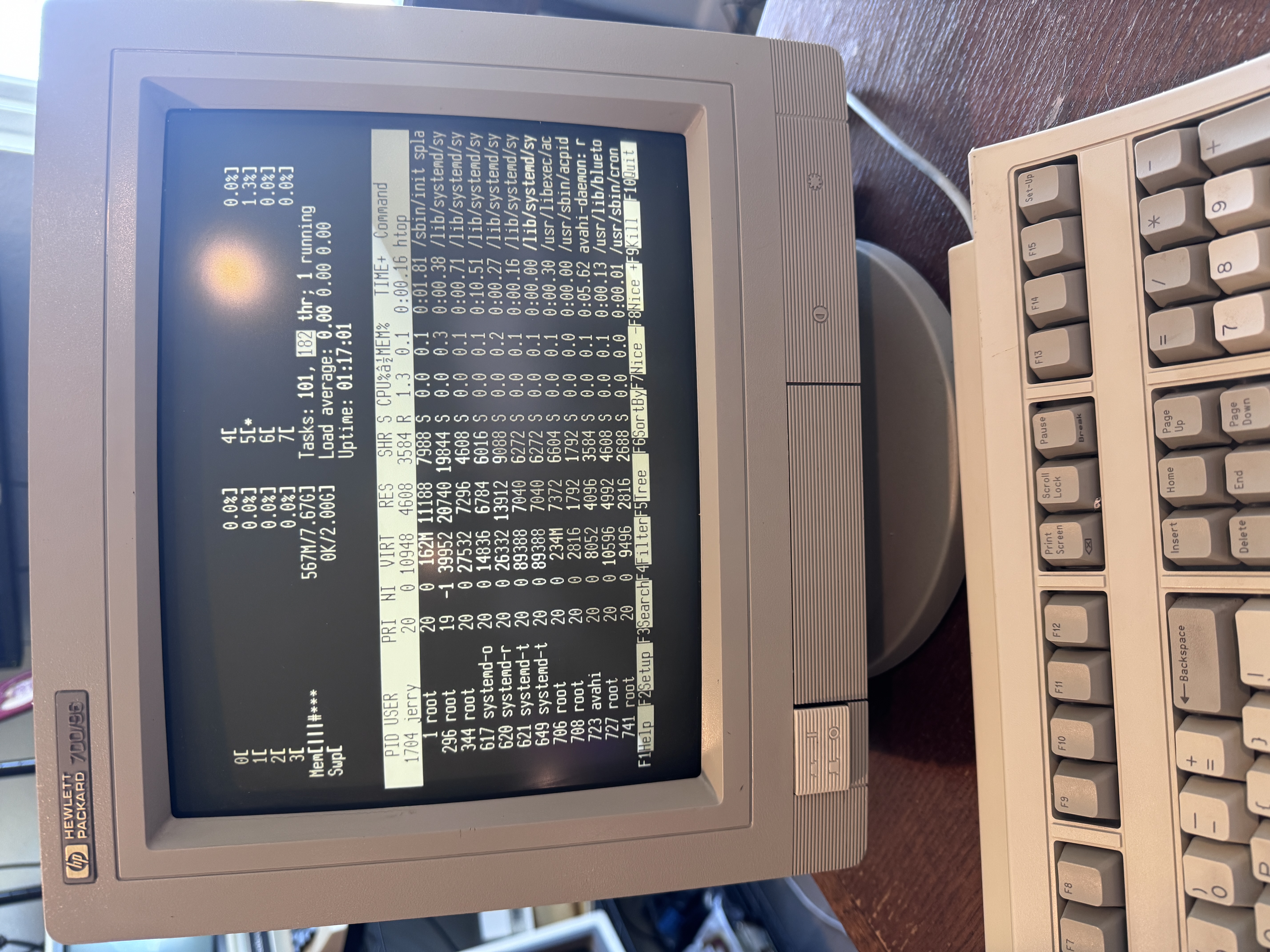
htop on a 1980s HP terminal, driven by a modern Ubuntu box.
From there it was just rinse and repeat for ttyUSB1 and the second HP terminal.
Same override, same 9600 baud, same VT220 setting.
Two seats in the “computer room” were now open for business.
The TVI 910 cable puzzle
The TVI 910 refused to join the party.
Where the HP terminals were happy with a three-wire null modem, the TVI stubbornly produced
a single garbled character, or nothing at all, no matter what I sent over ttyUSB2.
Typing on its keyboard didn’t reach the host either.
This wasn’t a driver problem. This was old-school RS-232 stubbornness. The TVI wanted proper handshaking signals before it would talk or listen. So the simple “TX/RX/GND” cable had to grow up into a full null-modem arrangement.
TVI 910 wiring that finally worked
Using Cat5 between a DB9 at the adapter and a DB25 at the TVI, I ended up with:
| DB9 Pin | Function | DB25 Pin(s) | Function |
|---|---|---|---|
| 2 | TX | 2 | RX |
| 3 | RX | 3 | TX |
| 5 | GND | 7 | GND |
| 4 | DTR | 6 + 8 | DSR + DCD (tied together) |
| 6 | DSR | 20 | DTR |
| 7 | RTS | 5 | CTS |
The key trick was tying DCD to a signal the adapter actually asserts, otherwise the TVI just sits there waiting for a “carrier” that never comes.
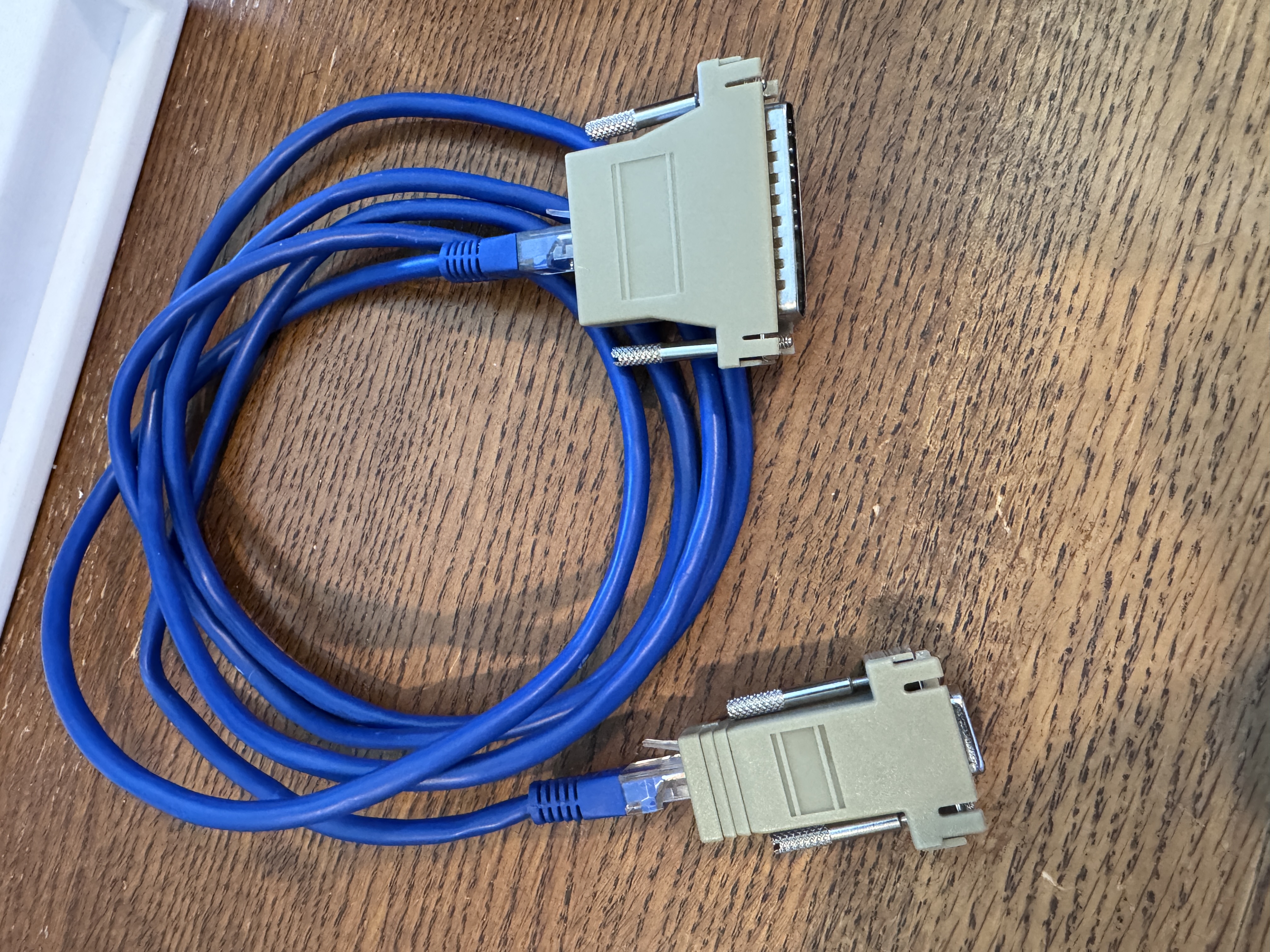
Once that cable was built, echo "TVI TEST" | sudo tee /dev/ttyUSB2 finally produced a clean line of text,
and typing on the TVI keyboard showed up in a sudo cat /dev/ttyUSB2 window.
With a matching serial-getty instance, the TVI joined the network as the third seat.
Multiple seats, one computer
At this point the system looked like this:
- ttyUSB0 – HP 700/96, VT220, 9600 baud
- ttyUSB1 – HP 700/98, VT220, 9600 baud
- ttyUSB2 – TVI 910, custom cable, 9600 baud
- ttyUSB3 – empty, waiting for the next rescued terminal
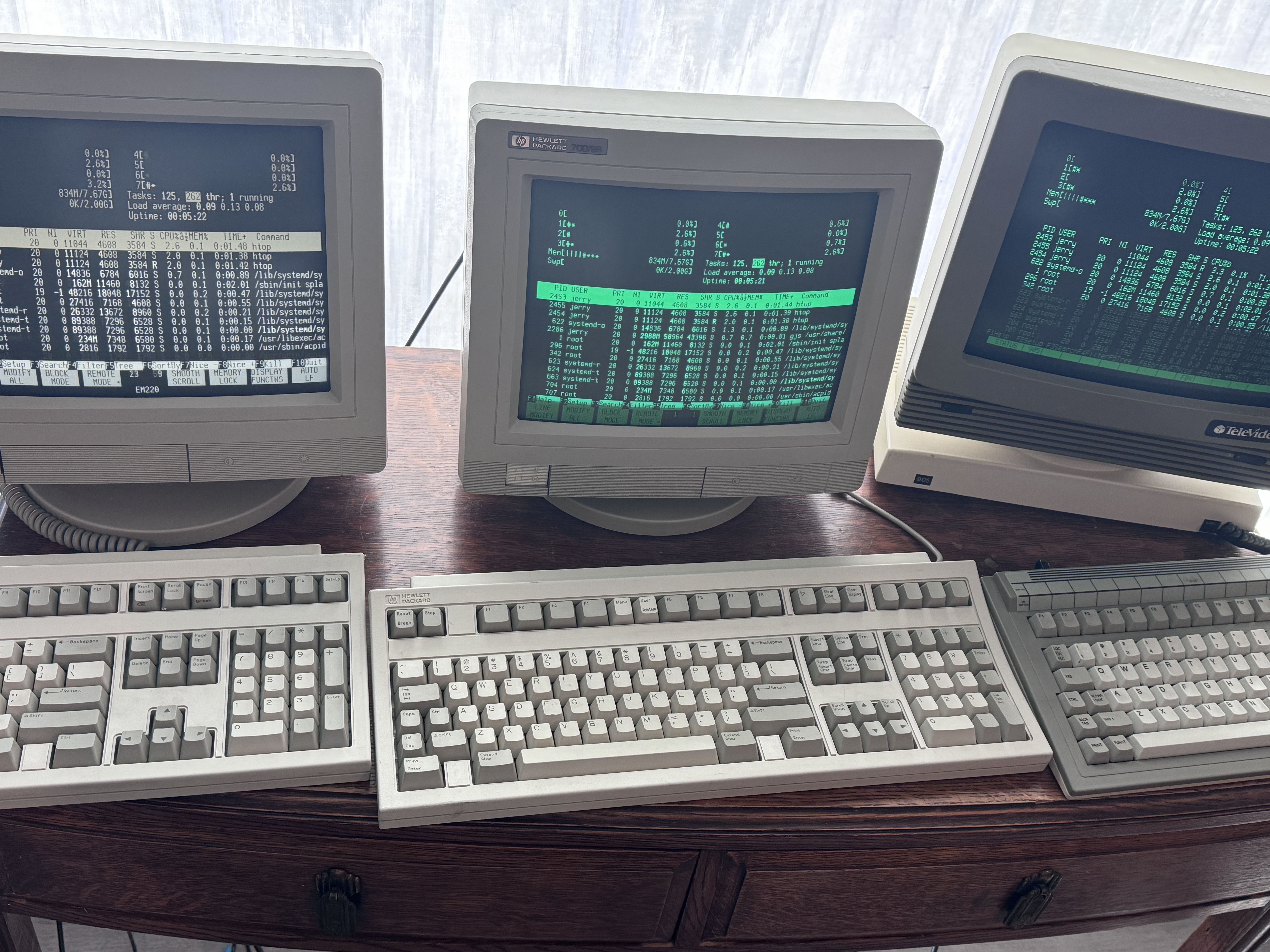
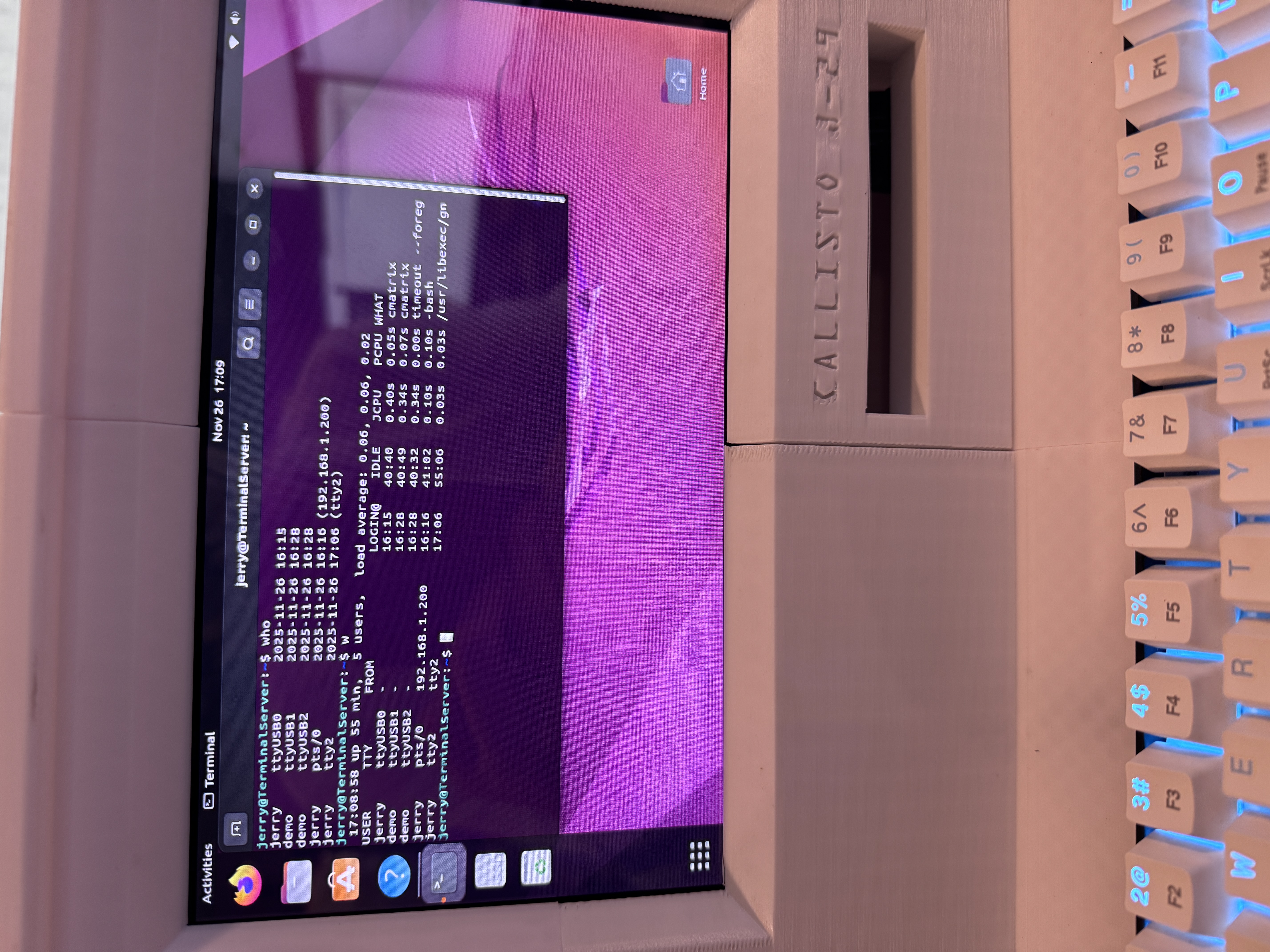
who and w make the shared nature of the system very real.
The best part is when you log in on each terminal as a different user and then run who:
$ who
jerry  ttyUSB0  2025-11-25 15:42
sarah  ttyUSB1  2025-11-25 15:43
mike   ttyUSB2  2025-11-25 15:44
Instantly, it feels like a real computer room again. Three keyboards clicking, one machine doing the work.
Quick command cheat sheet
Core commands used in this build
# See which USB serial ports exist
ls -l /dev/ttyUSB*

# Watch USB devices as you plug and unplug
dmesg -w

# Set up a serial port for 9600 8N1
sudo stty -F /dev/ttyUSB0 9600 cs8 -parenb -cstopb -crtscts -ixon -ixoff

# Send a test line to the terminal
echo "Hello terminal" | sudo tee /dev/ttyUSB0

# Listen to what the terminal sends back (Ctrl+C to stop)
sudo cat /dev/ttyUSB0

# Enable and start a serial login on a port
sudo systemctl enable serial-getty@ttyUSB0.service
sudo systemctl start serial-getty@ttyUSB0.service

# Override serial-getty for 9600 baud VT220
sudo systemctl edit serial-getty@ttyUSB0.service
# then:
# [Service]
# ExecStart=
# ExecStart=-/sbin/agetty -L 9600 %I vt220

# See who is logged in
who
w
Thoughts on shared computing
Sitting in front of these terminals feels very different from sitting at a modern PC.
You are reminded that you are sharing something.
If another user runs a big compile, you feel it.
If you run who and see three names, you know you are not alone on this machine.
It also struck me as to how familiar this old system feels when you compare it to modern cloud computing. Strip away the plastic and the RS-232 headaches, and the idea is the same: many users sharing a single, centralized machine that doles out time, memory, and processing power as fairly as it can. A terminal in 1983 and an SSH window into an EC2 instance in 2025 aren’t as far apart as they look. One just hums under your desk, the other hums in a datacenter you’ll never see. The vocabulary changes, the scale changes, the billing certainly changes — but the core idea, “one big computer serving many people at once,” is old enough to have green phosphor. Recreating it with vintage hardware made the connection feel both obvious and direct.
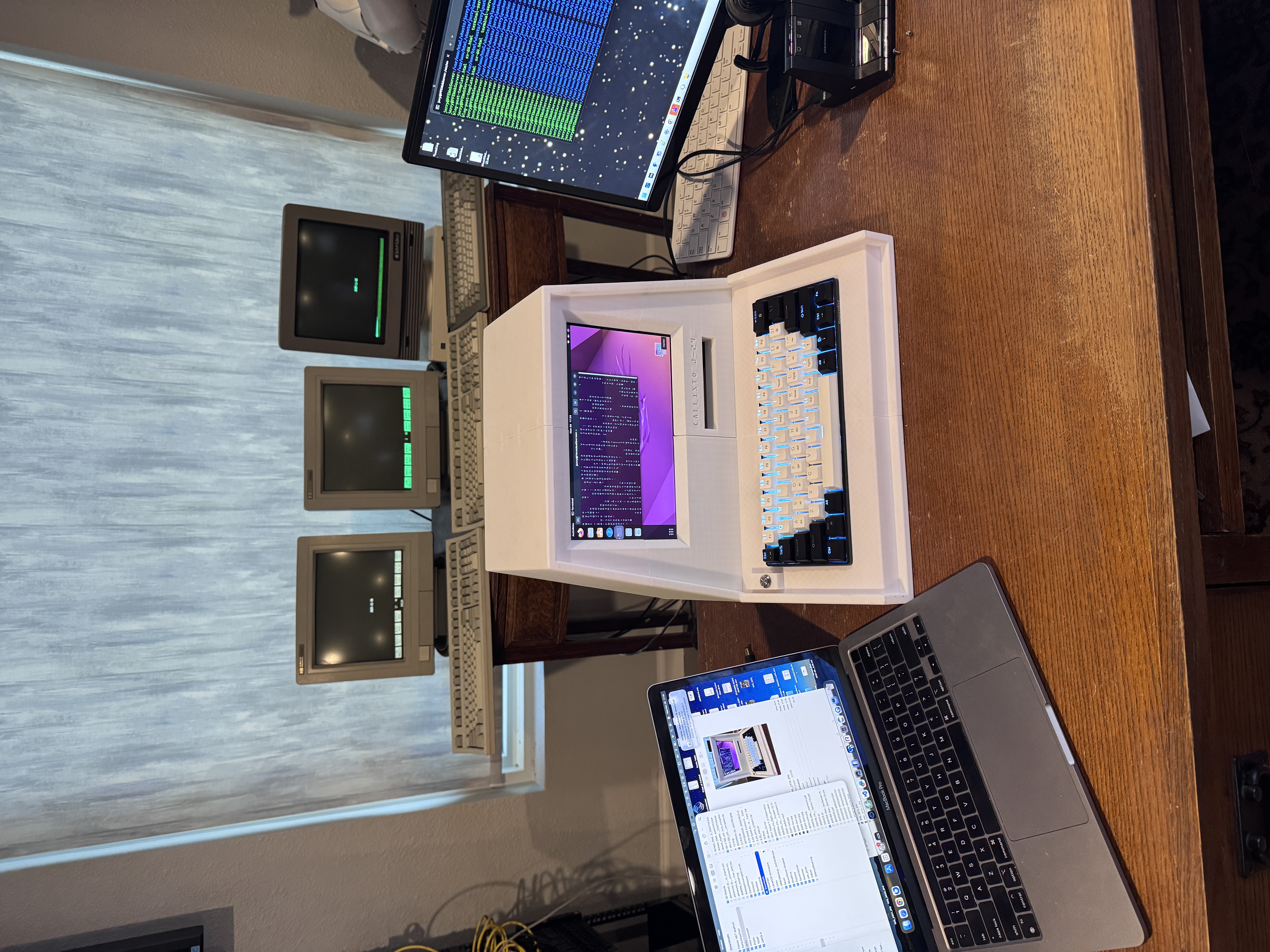
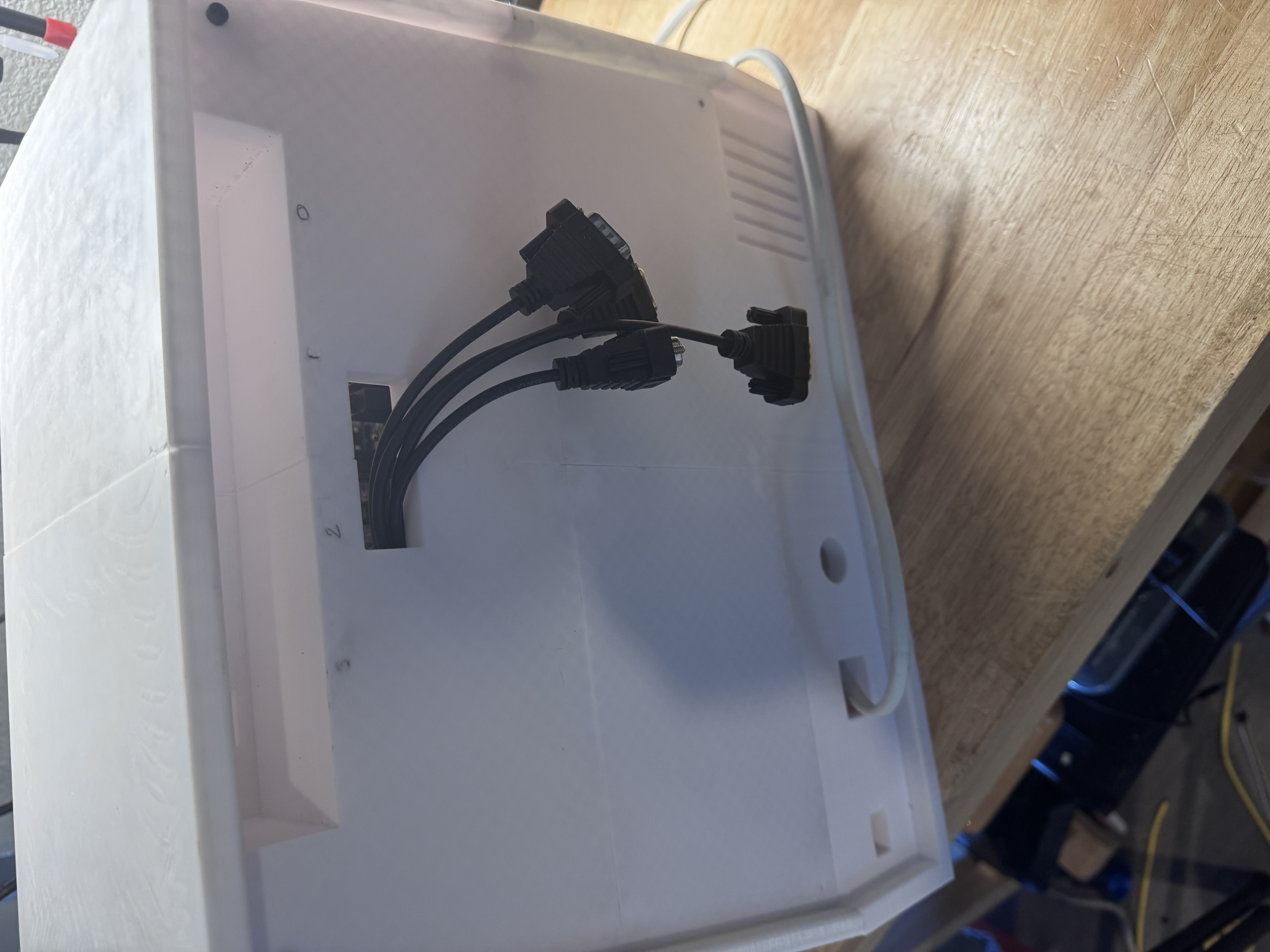
If you like the 3d Printed enclosure I made for the mac mini, you can make one too! Google "Callisto J-29" or head over to thingiverse and search there. It takes a while to print, but it fits right in my little collection of history!
Reflections
This was supposed to be the “easy” weekend project. Plug in a hub, flip on a few services, bask in four blinking cursors. Here’s what it actually taught me:
-
“It worked yesterday” still doesn’t mean all that much.
The Prolific hub didn’t die, the kernel changed around it. It just took me a while to figure that out! -
RS-232 is easy… until it isn’t.
TX/RX/GND looks great on a napkin and has fooled generations into thinking it's really simple. But real troubleshooting takes a skillset that fewer people learn these days, so the TVI 910 politely reminded me that some terminals refuse to say a single word until every handshaking pin feels properly loved. -
“Shared computer” is easier to experience than to explain.
Watching someone type'who', then spot another user across the room, and say “wait, we’re on the same box?” explains time-sharing better than network diagram ever will. -
The cloud isn’t as new as we pretend.
Rebuilding this little multi-user room made it obvious that modern cloud computing is very similar to the old time-sharing model, with higher performance, more capability, better uptime, and a much bigger electric bill. A 1980s terminal and an SSH window both tap into one big shared machine, which is proof that the new didn’t replace the old so much as grow right out of it. -
The hard parts make the best stories.
If the first adapter had behaved, I’d have a nice photo and not much else. Instead I ended up with a working exhibit, a deeper understanding of serial plumbing, and a fresh reminder that “this will be quick” remains a dangerous phrase in computing.